
Sharing and printing
The Share page gathers every way a photo can leave Radiant Photo: saving, printing, the clipboard, the system share sheet and Apple Photos. Click Share in the right rail to open it. Each row says what you'll get before you click it.
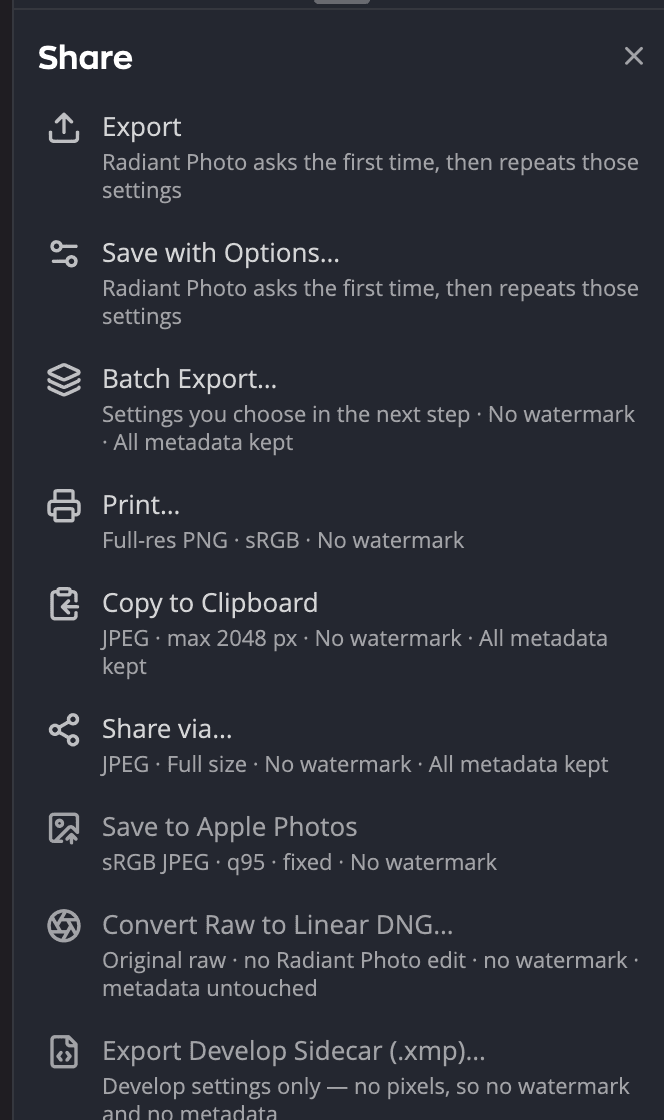
| # | Row | What you get |
|---|---|---|
| 1 | Export | A quick save with your last Save settings. The first time, Radiant Photo asks for them. |
| 2 | Save with Options… | The Save dialog. See The Save dialog. |
| 3 | Batch Export… | Many photos at once, with settings you choose in the next step. |
| 4 | Print… | Your computer's print dialog. |
| 5 | Copy to Clipboard | A JPEG, at most 2048 px on the long edge, ready to paste. |
| 6 | Share via… | Your system's share sheet, for Mail, Messages and other apps. |
| 7 | Add to Photos | macOS only. A new copy of the edited photo in your Photos library. |
| 8 | Save to Apple Photos | macOS only. Writes the edit back to the Photos library the photo came from. |
| 9 | Radiant Photo asks the first time, then repeats those settings | The gray terms line under a row. Before your first save it says this; after that, it lists the settings the row uses. |
Below them, raw files also get Convert Raw to Linear DNG… and Export Develop Sidecar (.xmp)…. See DNG files and Saving develop settings beside your photos.
A photo you're editing from Apple Photos goes back to Photos with Done on its bar. While it's on screen, the page shows only Print…, Copy to Clipboard and Share via…. See Using Radiant Photo with Apple Photos. In Radiant Photo Host, the page has no Batch Export…, because the Host opens only the photos plug-ins send it.
What each row carries
The gray line under a row lists what goes out with it:
- The format, for example Full-res PNG · sRGB for printing or JPEG · max 2048 px for the clipboard.
- The metadata: All metadata kept, All metadata removed, or what SafeShare removes, such as Location removed. See SafeShare: removing private metadata.
Each row that renders the photo also carries a watermark chip, such as Watermark: Signature. Click it to choose another watermark for that row, or None. Export uses the choice made for Save with Options…, so changing either chip changes both. Save to Apple Photos is never watermarked, because it saves the photo in your library. See Watermarks.
Your SafeShare choices apply to every row that writes pixels too. Convert Raw to Linear DNG… and Export Develop Sidecar (.xmp)… render nothing, so they carry no watermark chip, and neither a watermark nor SafeShare applies to them.
A row that can't run right now is grayed out and says why. For example: Open a photo first, An export is already running or This photo didn’t come from Apple Photos.
Print… (⌘P, Ctrl+P on Windows) renders the photo at full resolution in sRGB and opens your computer's print dialog. There you choose the printer, paper size and copies. The photo prints on one page, fitted and centered. On a Mac, the print dialog can also save a PDF.
Tip
To print at a set size, crop the photo to that shape first. See Crop & Straighten.
Copy to the clipboard
Copy to Clipboard puts a JPEG of the edited photo on the clipboard. Paste it into an email, a message or a document. The clipboard holds at most 2048 px on the long edge. A larger photo is scaled down, and Radiant Photo says so.
Share via…
Share via… opens the share sheet of macOS or Windows, with the edited photo ready to send. It uses the settings of your last save, or a JPEG if you haven't saved yet.
Apple Photos (macOS)
| Command | Where | What it does |
|---|---|---|
| Save to Apple Photos | File menu and the Share page | Saves the edit back into Photos as a new version of the original. Only for photos that came from Apple Photos. The file is an sRGB JPEG at quality 95. |
| Add to Photos | File menu and the Share page | Adds the edited photo to your Photos library as a new photo. Works for any open photo except one you're editing from Apple Photos. It carries its own watermark chip. |
The first time, macOS asks whether Radiant Photo may add to your Photos library. If you said no, allow it in System Settings > Privacy & Security > Photos.
Watch background jobs
Batch exports run in the background, so you can keep editing. The Jobs section at the foot of the Share page lists them.
- Each job shows Queued, In progress, Done, Stopped or Failed, and a count such as 12 of 40.
- Stop after current finishes the photo being saved, then stops. Files already saved stay on disk.
- One photo that fails never stops the rest. 2 failed lists each one with a plain reason, and Copy failure list copies the list.
- Clear removes a finished job from the list.
Jobs from Radiant Flow
In Radiant Flow, a Job sent to Radiant Photo with Process with… comes here as one job. Radiant Flow opens Radiant Photo, or brings it to the front, and the job is listed under Jobs as soon as it arrives. It starts right away, or after the job already running. See Send to Radiant Photo in the Radiant Flow manual.
- The row names the Job and says where it came from, for example Okafor Wedding · 412 photos · from Radiant Flow. The line under it names the Look, Recipe or Workflow the job applies.
- Above the rows, a line counts the jobs waiting, for example 2 jobs waiting.
- Click Start on the job's row to run that job. While another job runs, the row says Queued instead.
- Start under the list runs every waiting job, one after another. While they run, Stop the queue stops after the photo being saved, and the rest keep waiting.
Once a job runs, it shows its progress like any batch export. The files go to the folder chosen in Radiant Flow, named after the originals with -Radiant at the end. If a file with that name is already there, Radiant Photo keeps both.
To start each job yourself, turn off Start jobs from Radiant Flow on arrival in Settings > Files. A job then waits in the list until you click Start. See Settings.
The Jobs list is part of the Share page, which is there while a photo is open. If Radiant Photo shows its Home screen, open a photo to see the job. A job that hasn't started stays in the list when you quit Radiant Photo, and waits for Start the next time.
If the Look, Recipe or Workflow a job names is gone from Radiant Photo when the job arrives, for example because you chose another Workflow in the meantime, Radiant Photo doesn't take the job: it isn't listed, and Radiant Flow's sidebar still says Queued. Send it again from Radiant Flow.