
Using Workspaces
A workspace chooses which tools the right panel shows, and in what order. The included workspaces are built around tasks, so you see the tools you need for the job at hand. Choose one from the workspace button in the top toolbar.
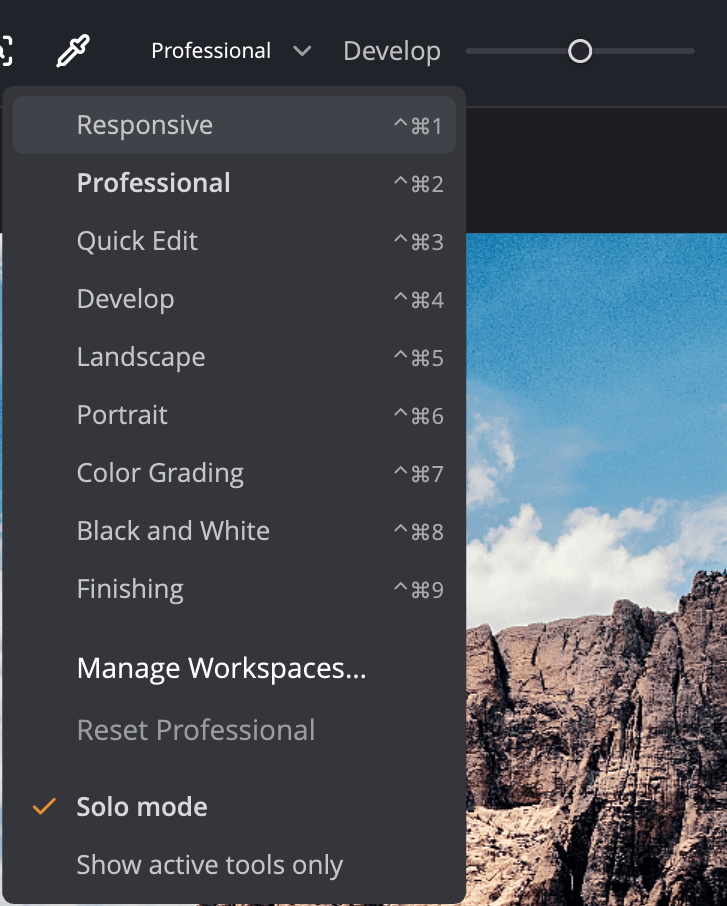
Included workspaces
| Workspace | Tools it shows |
|---|---|
| Responsive | Only the tools this photo's settings use. It changes as you apply recipes. |
| Professional | Every editing tool. This is the default. |
| Quick Edit | Smart Editing, Tone, Levels, Curves and Color |
| Develop | Quick Edit's tools plus Presence, Skin Tone and Details |
| Landscape | Smart Editing, Tone, Levels, Curves, Presence, Color, Details, Selective Color, Graduated Filter, Finishing Tools and Effects |
| Portrait | Smart Editing, Tone, Levels, Curves, Skin Tone, the face tools (Face Selection, Eyes, Face, Skin, Makeup), Color Grading, Color Wheels, Selective Color, Black & White, Graduated Filter, Finishing Tools and Effects |
| Color Grading | Color Grading, Color Wheels, Selective Color, Graduated Filter, Finishing Tools and Effects |
| Black and White | Smart Editing, Tone, Levels, Curves, Color Grading, Color Wheels, Black & White, Graduated Filter, Finishing Tools and Effects |
| Finishing | Presence, Details, Color Grading, Color Wheels, Selective Color, Black & White, Graduated Filter, Finishing Tools and Effects |
Manual Noise Reduction isn't in any included workspace. You'll find it on the Focus page.
Responsive can look empty on a photo you haven't edited yet, because nothing is in use. Smart Editing always shows.
Switch workspaces
- Click the workspace button in the top toolbar and choose a workspace.
- Or press ⌃⌘1 to ⌃⌘9 and ⌃⌘0 (Ctrl+Shift+1 to Ctrl+Shift+9 on Windows) for the first ten workspaces in the list. The menu shows each shortcut beside its workspace.
Choosing a workspace also brings back the right panel if it was hidden.
Keep the panel compact
Two settings in the workspace menu keep the right panel short. You'll also find them when you right-click Adjustments on the rail.
| Setting | What it does |
|---|---|
| Solo mode | Opening one tool closes the others. On by default. |
| Show active tools only | Shows only the tools in use on this photo. Not available in Responsive, which already works this way. |
To remove one tool from the current workspace, right-click its title and choose Hide tool. The last tool in a workspace can't be hidden.
Manage Workspaces
Choose Manage Workspaces… from the workspace menu, or choose View > Manage Workspaces…. Changes apply as you make them. Click Done when you're finished.
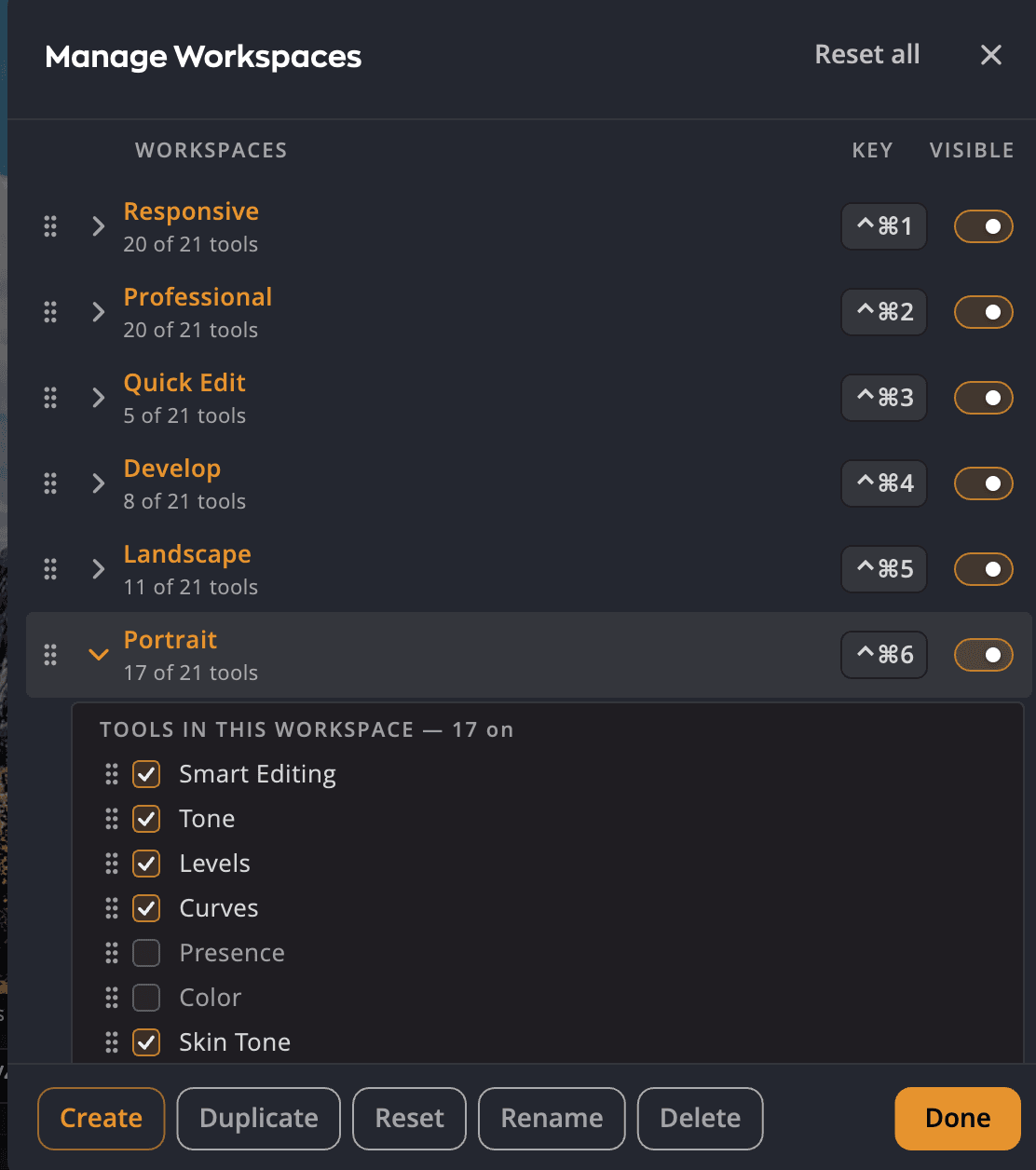
| # | Control | What it does |
|---|---|---|
| 1 | Drag handle | Drag a row to change the order. The order sets the shortcuts. |
| 2 | KEY | The shortcut number for each of the first ten visible workspaces |
| 3 | VISIBLE | Shows or hides a workspace in the menu. At least one stays visible. |
| 4 | Tool list | Click Show tools on a row to open its tool list. Click it again to close the list. Check the tools to show and drag them into order. Reset to default at the end of the list puts them back. |
| 5 | CUSTOM | Marks a workspace you made |
| 6 | Create, Duplicate, Reset, Rename, Delete | Add a new workspace, or copy, reset, rename or remove the selected one |
| 7 | Reset all | Puts every included workspace back and removes your own |
Create your own workspace
- Click Create. A workspace named New Workspace appears at the end of the list with every tool on.
- Type a name and press Return (Enter on Windows).
- Its tool list is already open. Uncheck the tools you don't need.
To start from an existing workspace instead, select it and click Duplicate. Responsive can't be duplicated, because its tools change with each photo.
Your own workspaces carry a CUSTOM badge. Only they can be renamed with Rename or removed with Delete. If you delete the workspace you're using, Radiant Photo switches to Professional.
Reset
- Reset in the dialog, or Reset Professional in the workspace menu, puts one workspace back to its default tools and order. A message offers Undo for a few seconds.
- Reset all puts every included workspace back and removes your own workspaces. It asks first, and it can't be undone.
Tip
Built-in workspaces can't be renamed or deleted, but you can hide them and change their tools.