
Touring the interface
Radiant Photo keeps your photo in the middle of the window and puts every control around it. This topic names each area so the rest of the manual makes sense.
For a guided tour, choose Help > Take a Tour. The Help window opens on the Welcome page and starts its tour.
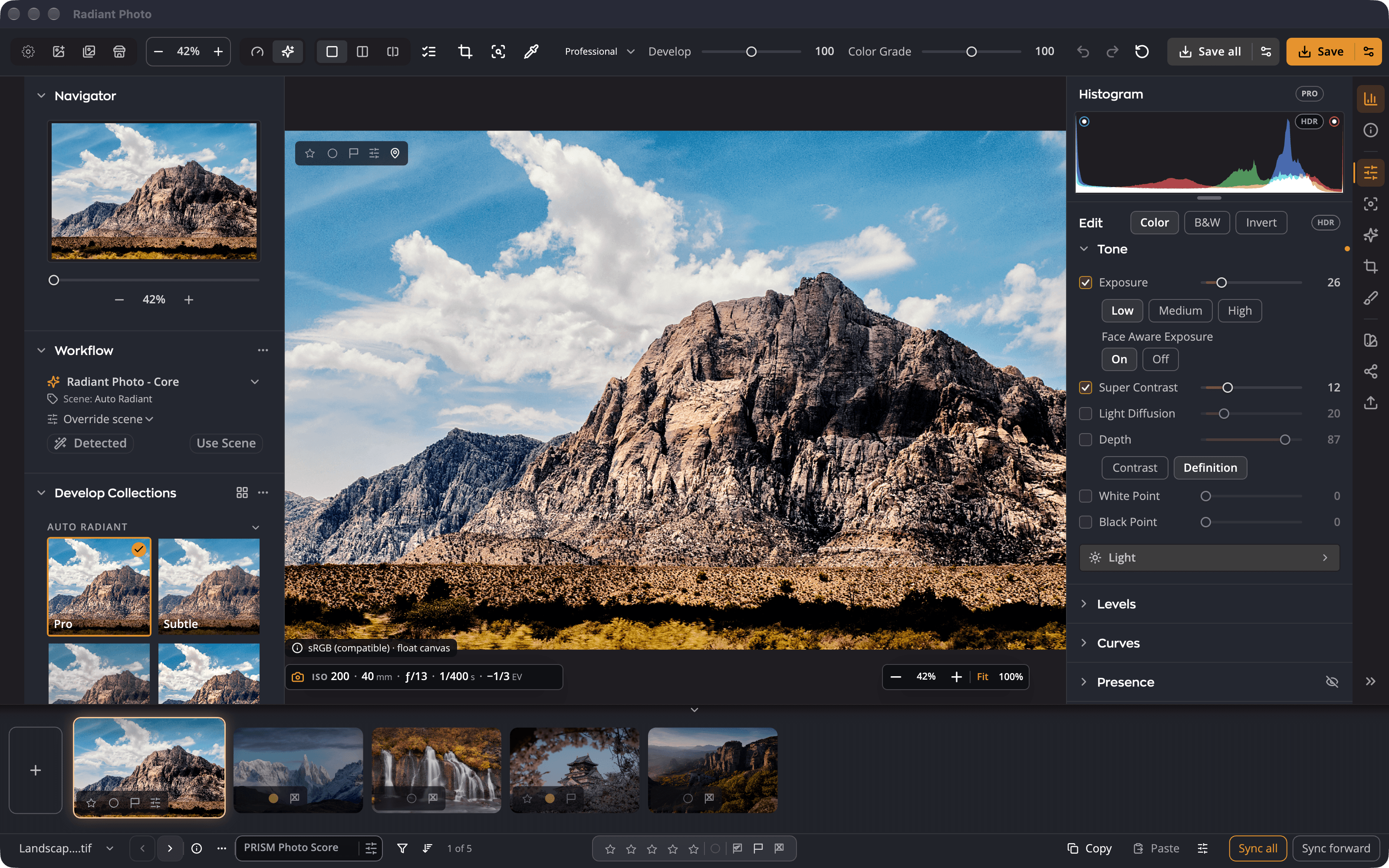
| # | Area | What it's for |
|---|---|---|
| 1 | Top toolbar | Opening photos, zoom, view modes, workspaces, the Develop slider and saving |
| 2 | Left panel | Navigator, Workflow and the Develop Collections and Recipes tabs |
| 3 | The photo | Your photo as it looks with every edit applied |
| 4 | Rail | Buttons that choose what the right panel shows |
| 5 | Right panel | The histogram, photo information and every editing tool |
| 6 | Bottom bar and filmstrip | Moving between photos, rating them, copying and syncing settings |
Before you open a photo
When no photo is open, Radiant Photo shows two cards.
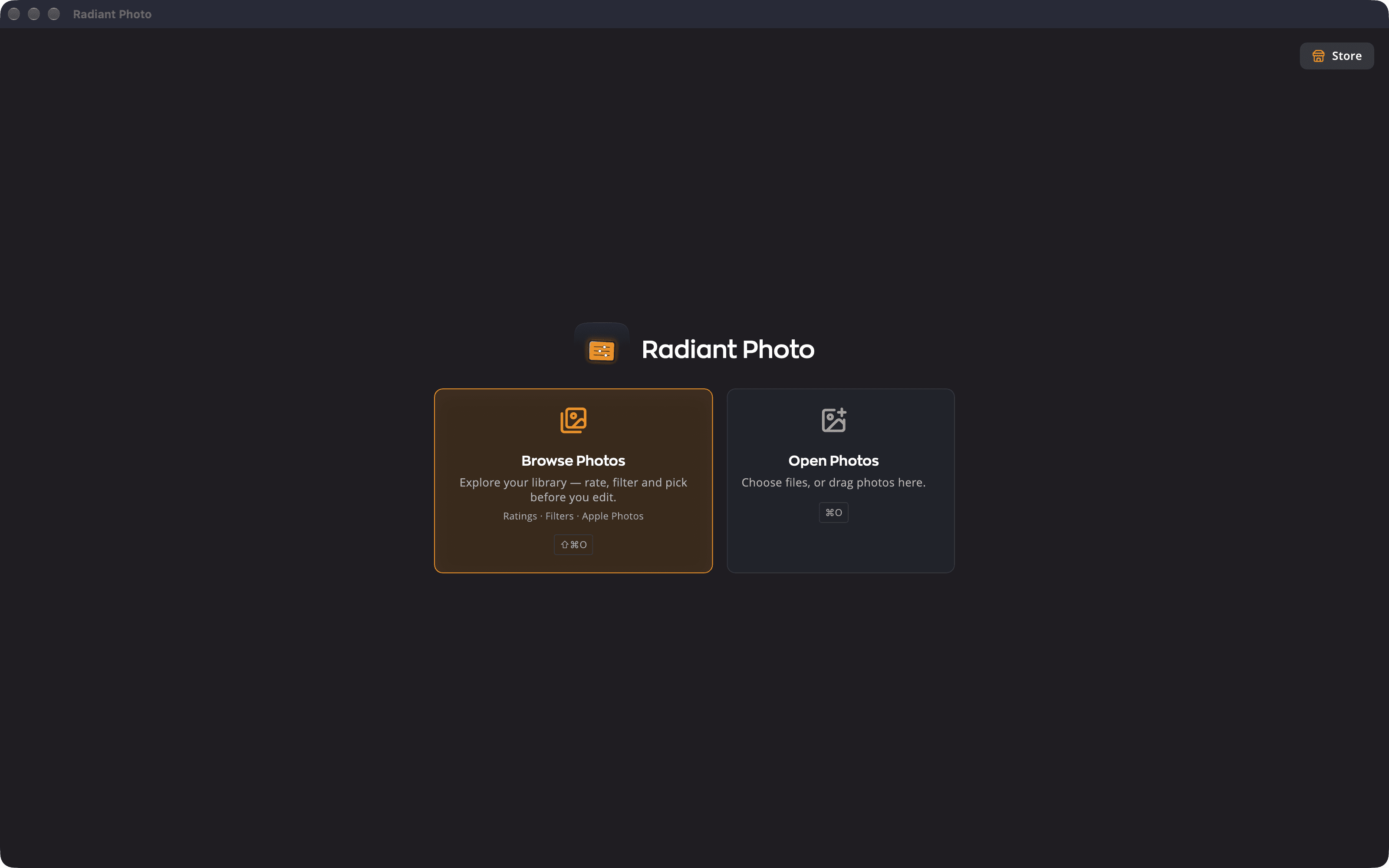
- Browse Photos opens Radiant Flow, so you can rate, filter and pick before you edit.
- Open Photos lets you choose files. You can also drag photos onto the card. It reads Drop to open while you drag.
Make room for your photo
Every area except the photo can step aside. These shortcuts change the layout without changing your edit.
| Shortcut | What it does |
|---|---|
| ⌥⇥ (Ctrl+Tab on Windows) | Hide / Show Side Panels |
| ⇧⌥⇥ (Ctrl+Shift+Tab) | Hide / Show Panels + Filmstrip |
| ⇧Space | Collapse / Expand Filmstrip |
| ⇧⌘Space (Ctrl+Shift+Space) | Hide / Show Filmstrip |
| ⌥⌘P (Ctrl+Shift+P) | Cycle Panels: steps through which side panels show |
| ⌥⇧⌘P (Ctrl+Shift+T) | Cycle Layout: panels and filmstrip, then filmstrip only, then the photo alone |
| ⇧L | Lights Out: dims the interface, then hides it, so the photo gets the whole window. A third press or Esc brings it back. |
| ⌃⌘I (Ctrl+Shift+I) | Info Only: the right panel shows only photo information |
| ⌘G (Ctrl+G) | Grid: shows your open photos side by side. See Grid view and sorting. |
Tip
Press Space and hold to see the original photo. Let go to see your edit again.