
The Smart Editing tools
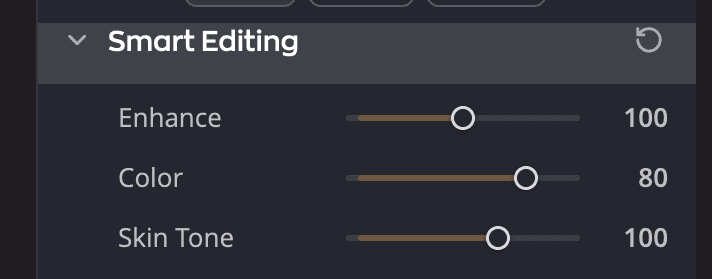
The Smart Editing tools are three sliders that improve a whole photo at once: Enhance, Color and Skin Tone. They're the first section on the Adjustments page of the right panel, and the best place to start editing.
How they work
Each slider sets a target rather than a fixed amount. Radiant Photo looks at the photo and corrects it toward that target, so the same setting can brighten one photo and darken another. That makes the Smart Editing tools fast for single photos and dependable when you save them in a recipe.
There is no checkbox to turn them on. Move a slider and that tool starts working. Enhance and Color start together: move either one and both apply.
| # | Slider | Range | What it does |
|---|---|---|---|
| 1 | Enhance | 0 to 200 (default 50) | Improves the tone and contrast of the photo. |
| 2 | Color | 0 to 100 (default 50) | Improves color vibrancy and corrects tint. |
| 3 | Skin Tone | 0 to 150 (default 20) | Balances the scene around the skin tones of the people in it. |
| 4 | Reset Smart Editing | Returns all three sliders to their defaults. |
Double-click a slider to return it to its default.
Enhance
Enhance affects the tone and contrast of the photo. Raise it for more correction, or lower it for a lighter touch. For direct control of exposure and contrast, use the Tone tools.
Color
Color affects color vibrancy and tint correction. For fine control of individual color tools, use the Color panel.
Skin Tone
Skin Tone balances a scene based on a portrait's subject. It is the same setting as Skin Tone Balance in the Skin Tone panel, so moving one moves the other. Moving it also turns on the Skin Tone panel's correction. For detection and color cast controls, see Skin Tone.
Reset
Point at the Smart Editing header and click Reset Smart Editing to return all three sliders to their defaults. You can also hold Option (Alt on Windows) and click the section's title.
Note
Resetting Smart Editing also resets Skin Tone Balance in the Skin Tone panel, because the two sliders are the same setting. If Skin Tone correction was on, it stays on at that default. To turn it off, clear the Skin Tone Balance checkbox in the Skin Tone panel.
Tip
Work in order: Smart Editing first, then the individual tools for anything still missing.