
Color Sampler
The Color Sampler pins up to ten measuring points on your photo and shows their color values live. As you move a slider, the numbers change. You can watch a skin tone, a white shirt and a gray backdrop at the same time. The readouts appear in the Samplers section of the Histogram panel.
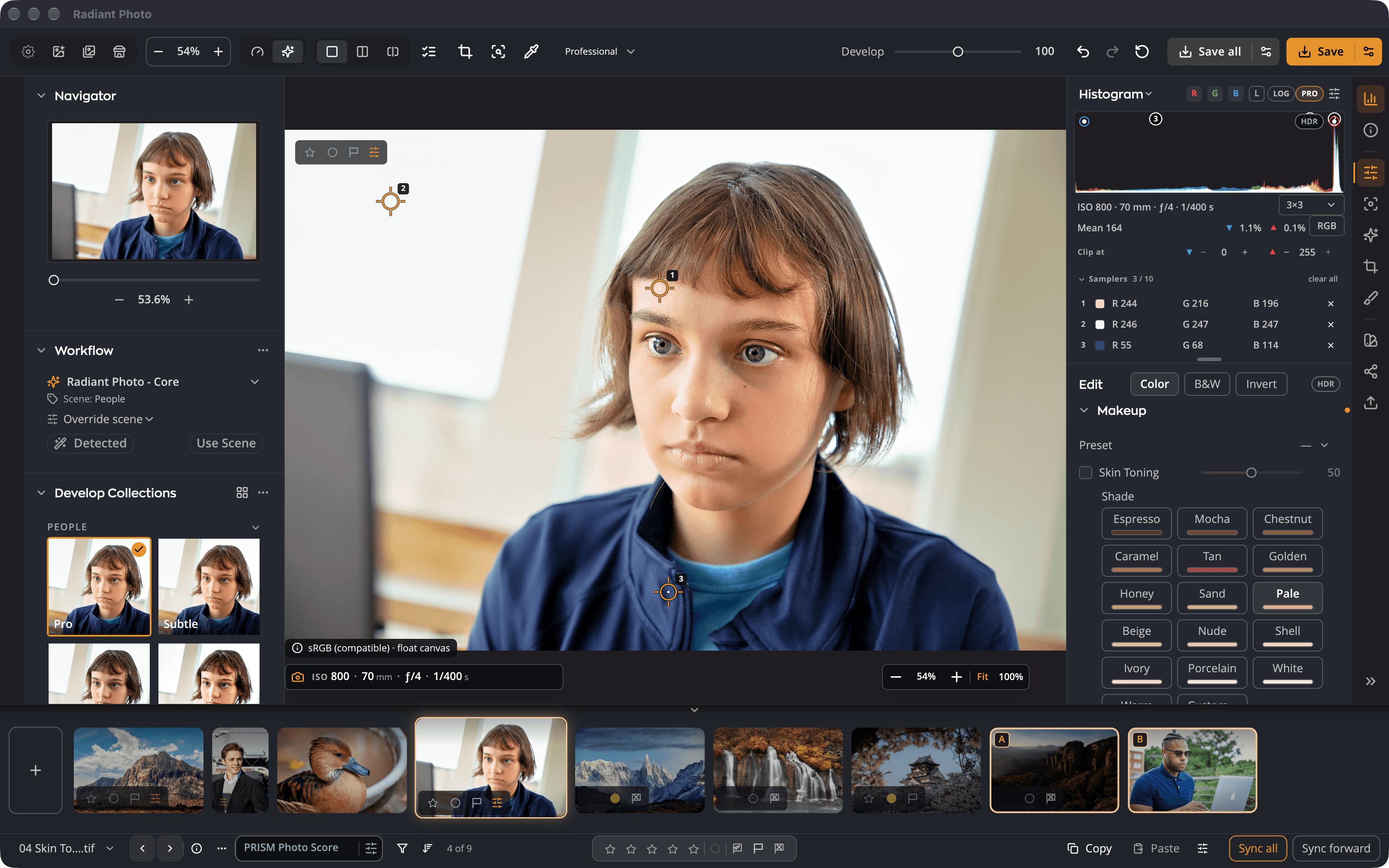
| # | Control | What it does |
|---|---|---|
| 1 | Numbered marker | One sampler on the photo. Drag it to move it. |
| 2 | Samplers rows | The live value for each marker, in marker order. |
| 3 | Readout space | Switches every row between RGB, %, HSV and Lab. |
| 4 | clear all | Removes every sampler from this photo. |
| 5 | Sample size | How many pixels each reading averages. |
Place samplers
- Press I, or choose View > Tools > Color Sampler. You can also click the eyedropper in the top toolbar.
- Click the photo where you want to measure. A numbered marker appears, and its row appears under Samplers.
- Click again to add more, up to ten. An eleventh click is ignored, so no point you placed is ever replaced.
- Press I again, or press Esc, to put the tool away. Your markers stay on the photo.
To move a marker, drag it. To remove one, ⌥-click it (Alt-click on Windows), or click the remove button on its row. Clear All removes them all.
Read the values
Each row shows the color at its marker, read from the photo as it looks now, with every edit applied. Change the readout space with the switch beside the rows:
| Readout | Shows |
|---|---|
| RGB | Red, green and blue, 0 to 255 |
| % | Red, green and blue as percentages |
| HSV | Hue, saturation and value |
| Lab | Lightness and the a and b color axes |
The same choice applies to the pixel readout in the Pro histogram.
While you soft proof, the values are read through the proof, the same way the canvas and the histogram are. See Soft proofing and gamut warning.
Sample size
Sample size sets how many pixels each sampler and eyedropper averages: Point, 3×3 (the default), 5×5, 11×11, 31×31, 51×51 or 101×101. A larger sample ignores noise and fine texture, which helps on skin and skies.
Good to know
- Samplers are a measuring tool, not an edit. They are not saved with the photo, not copied with Copy Settings and not part of undo.
- They stay with each photo while it's open, so you can switch photos and come back to them. Closing the photo removes them.
- A sampler stays on its spot in the photo when you crop. If the crop cuts it away, the marker turns faint but keeps reading its pixel.
Tip
Put one sampler on something that should be neutral, such as a gray card or a white shirt. If its red, green and blue values are equal, the color is neutral.