
Copying and syncing settings
Edit one photo, then give the same settings to the rest of the shoot. Copy and Paste work one photo at a time. Sync writes the current photo's settings onto many photos at once. You'll find the buttons in the bottom bar and the commands in the Edit menu.

| # | Control | What it does |
|---|---|---|
| 1 | Copy | Copies the current photo's settings. Right-click it to open the Copy Settings chooser. |
| 2 | Paste | Pastes the copied settings onto the current photo. Grayed out until you copy something. |
| 3 | Copy Settings… | The sliders icon. Opens the chooser, where you pick what Copy, Paste and Sync carry. |
| 4 | Sync all, Sync forward or Sync selected | Writes the current photo's settings onto other photos. See below. |
Copy and paste
- Open the photo whose settings you want.
- Choose Edit > Copy Settings (⌘C, Ctrl+C on Windows), or click Copy. Settings copied confirms it.
- Open another photo and click Paste, or choose Edit > Paste Settings (⌘V, Ctrl+V).
Copy Settings carries every group, and Spot Removal only when it's ticked in the chooser. The Copy button and Edit > Copy Selected Settings (⇧⌘C, Ctrl+Shift+C) copy only what's ticked in the chooser.
Choose what's copied
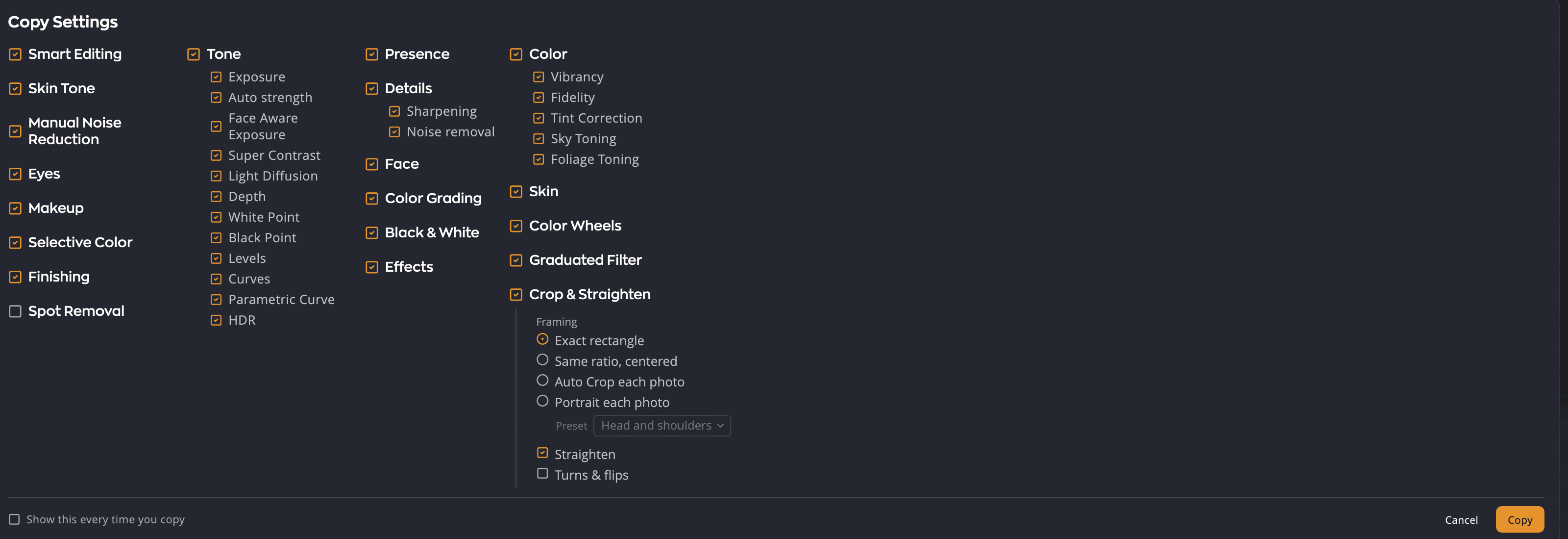
The chooser lists every adjustment section of the right panel, in the same order. Some sections have rows inside, such as Levels, Curves and HDR under Tone, or Sharpening and Noise removal under Details. Tick a section to include all of it, or tick single rows.
| # | Control | Default | What it does |
|---|---|---|---|
| 1 | Section checkbox | On | Includes or leaves out the whole section. A dash means some rows are ticked. |
| 2 | Spot Removal | Off | Copies the photo's spot fixes. With Add, the default, the other photo keeps its own fixes too, and a copied fix that lands on one it already has is skipped. Replace removes them first. |
| 3 | Framing (under Crop & Straighten) | Exact rectangle | How the crop is applied to each photo. See below. |
| 4 | Show this every time you copy | Off | Makes Copy open the chooser instead of copying straight away. |
| 5 | Copy | — | Copies with your choices and closes the chooser. |
Your ticks hold until you quit Radiant Photo. They apply to Copy, Paste and all three Syncs. Show this every time you copy is different: Radiant Photo remembers it after you quit.
Note
Spot Removal starts unticked because spots belong to one photo: its own dust and blemishes. Tick it when the same dust spot sits in the same place across a series.
Copying a crop
Under Crop & Straighten, Framing sets how a crop reaches each photo:
| Framing | What each photo gets |
|---|---|
| Exact rectangle | The same crop, in the same place on each photo as you see it. |
| Same ratio, centered | The largest crop of this shape, centered on each photo. |
| Auto Crop each photo | Auto Crop picks the best framing for each photo. Photos it has nothing to suggest for keep their crop. |
| Portrait each photo | Frames each photo with the Preset you choose. Photos with several faces are framed together. Photos it can't frame keep their crop. |
Two checkboxes go with it. Straighten (on) gives each photo this photo's straighten angle. Turns & flips (off) turns and flips each photo the way you turned or flipped this one.
Sync many photos at once
Sync writes the current photo's settings onto other photos, using the choices in the chooser. If some of those photos already have edits, Sync asks before it replaces them.
| Bottom bar | Edit menu | Keys | Photos it changes |
|---|---|---|---|
| Sync all | Sync Settings to All Open Images | ⌥⌘V (Ctrl+Shift+M) | Every open photo |
| Sync forward | Sync Settings Forward in Filmstrip | ⌥⇧⌘V (Ctrl+Shift+N) | The photos after this one in the filmstrip |
| Sync selected | Sync Settings to Selected Photos | — | The other selected photos |
To sync a few photos, ⌘-click (Ctrl-click) or ⇧-click their thumbnails, or choose Edit > Select All Photos. While several photos are selected, the bottom bar shows Sync selected in place of the other two.
If nothing is ticked in the chooser, the Sync buttons are grayed out and their tooltip says nothing is checked in Copy Settings.
Tip
Each paste or sync is one undo step on each photo, so you can step back on any photo it changed.