
Presence
Presence shapes the feel of a photo: its crispness, its depth and its haze. Texture, Clarity and Atmosphere each work on a different scale of detail, and two more sliders adjust color intensity. You'll find Presence in the right panel, below Curves.
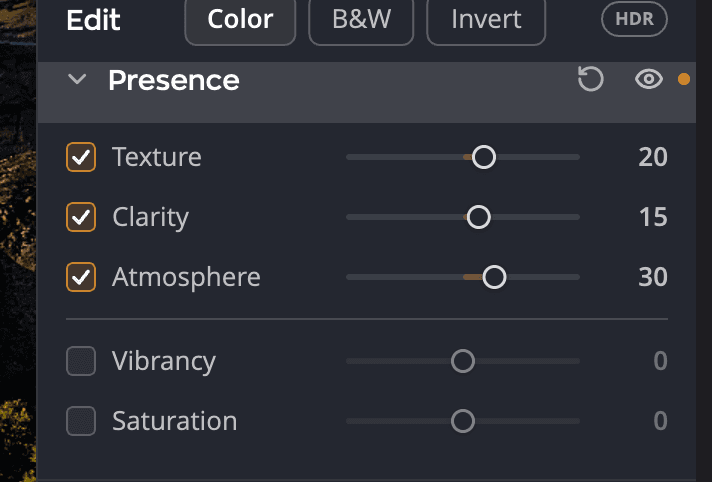
Turn a tool on
- Open Presence in the right panel.
- Select a tool's checkbox, or drag its slider. Dragging selects the checkbox for you.
Every slider runs from −100 to +100 and starts at 0. Move it right to add the effect and left to reverse it. Double-click a slider to put it back at 0, or clear its checkbox to turn that tool off.
| # | Tool | Range (default) | What it does |
|---|---|---|---|
| 1 | Texture | −100 to +100 (0) | Brings out or softens medium-sized detail such as foliage, fabric, hair and skin. |
| 2 | Clarity | −100 to +100 (0) | Adds or removes midtone contrast, for depth or a soft glow. |
| 3 | Atmosphere | −100 to +100 (0) | Cuts through haze and fog, or adds them. |
| 4 | Vibrancy | −100 to +100 (0) | Boosts muted colors most and leaves vivid colors nearly alone. |
| 5 | Saturation | −100 to +100 (0) | Changes every color's intensity evenly. At −100 the photo is black and white. |
These sliders change the whole photo. To use Texture, Clarity and Atmosphere on one part of the photo only, open the Graduated Filter. It has its own Presence section.
Texture
Texture works on medium-sized detail and leaves color and brightness alone. Positive values crisp up foliage, hair, feathers and fabric without the hard edges heavy sharpening can bring. Negative values smooth gently and keep the finest detail, which makes them good for skin: pores calm down while eyelashes stay sharp.
Try +15 to +40 for landscapes and products, or −15 to −35 to soften skin in a portrait.
Clarity
Clarity adds local contrast in the midtones, the sense of depth that makes a photo feel three-dimensional. Landscapes, architecture and textured scenes respond well to positive values. Negative values give a soft, dreamy glow for portraits.
Try +10 to +30 for everyday punch. If bright halos appear along strong edges, back the slider off.
Atmosphere
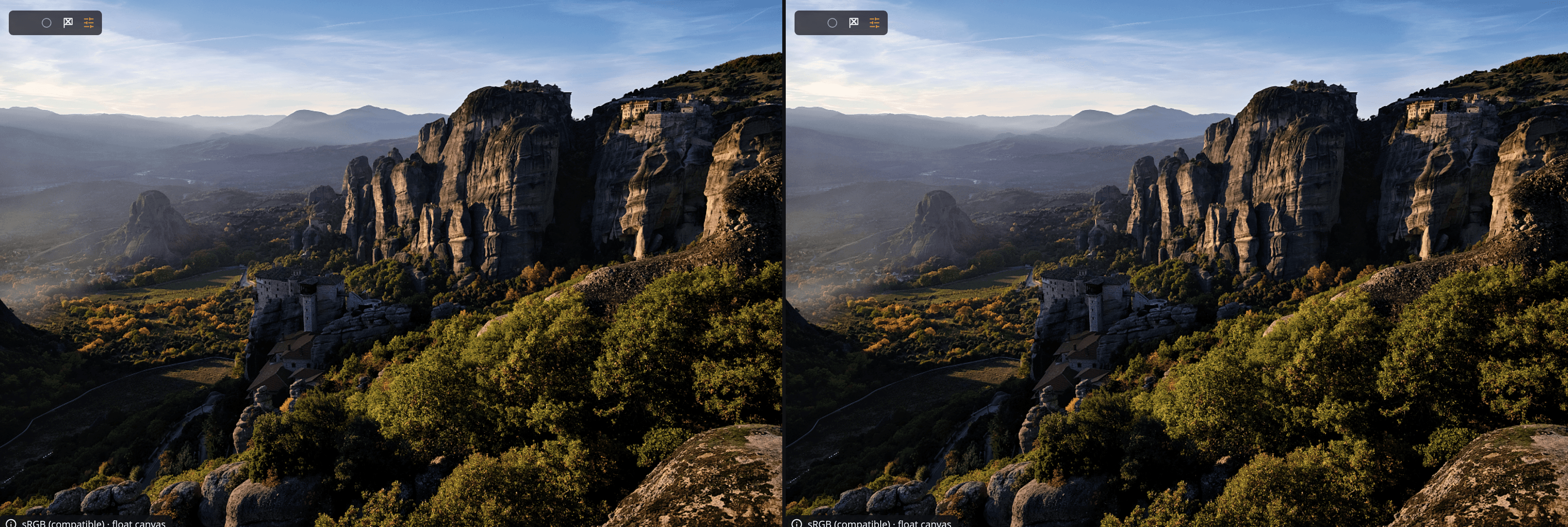
Atmosphere removes or adds haze, based on how light scatters through air. Positive values bring back contrast and color in distant mountains, fog or a smoggy skyline. Negative values add a soft mist for a moody look.
Start at +15 to +40 and stop as soon as the haze clears.
Tip
Correct any color cast before you use Atmosphere, with Tint Correction in Color or Color Temperature in Finishing Tools. Strong values can darken the photo and show noise in skies, so ease off or raise Shadows.
Vibrancy and Saturation
Below the divider, Vibrancy and Saturation adjust color intensity after Texture, Clarity and Atmosphere have done their work. They are separate from the Vibrancy in the Color panel, which has its own look.
A good order
Work from large to small, the same order Radiant Photo applies the tools:
- Atmosphere to clear haze and restore honest contrast.
- Clarity to add depth in the midtones.
- Texture to fine-tune the smallest detail.
Small steps go a long way. Values between ±15 and ±40 suit most photos.
Note
Texture and Sharpening work together. Texture handles medium-sized detail; Sharpening in Details handles the finest edges.
Turn it off or reset it
The eye in the Presence header turns all five tools off and keeps their settings. The header's reset button puts all five back to 0 and clears their checkboxes. Recipes you save include your Presence settings.