
The Store
The Store is where you add Looks, recipes, Develop Collections and Workflows to Radiant Photo. Everything you buy installs right away, with no restart, and stays in My Library. Choose Store > Browse Store or press ⌥⌘B (Ctrl+Shift+B on Windows).
The Store menu appears once Radiant Photo is activated. It has Browse Store, then a direct item for each section (Looks, Develop Collections, Recipes, Workflows and Radiant Toolkit), then My Library and Restore Purchases.
Find your way around
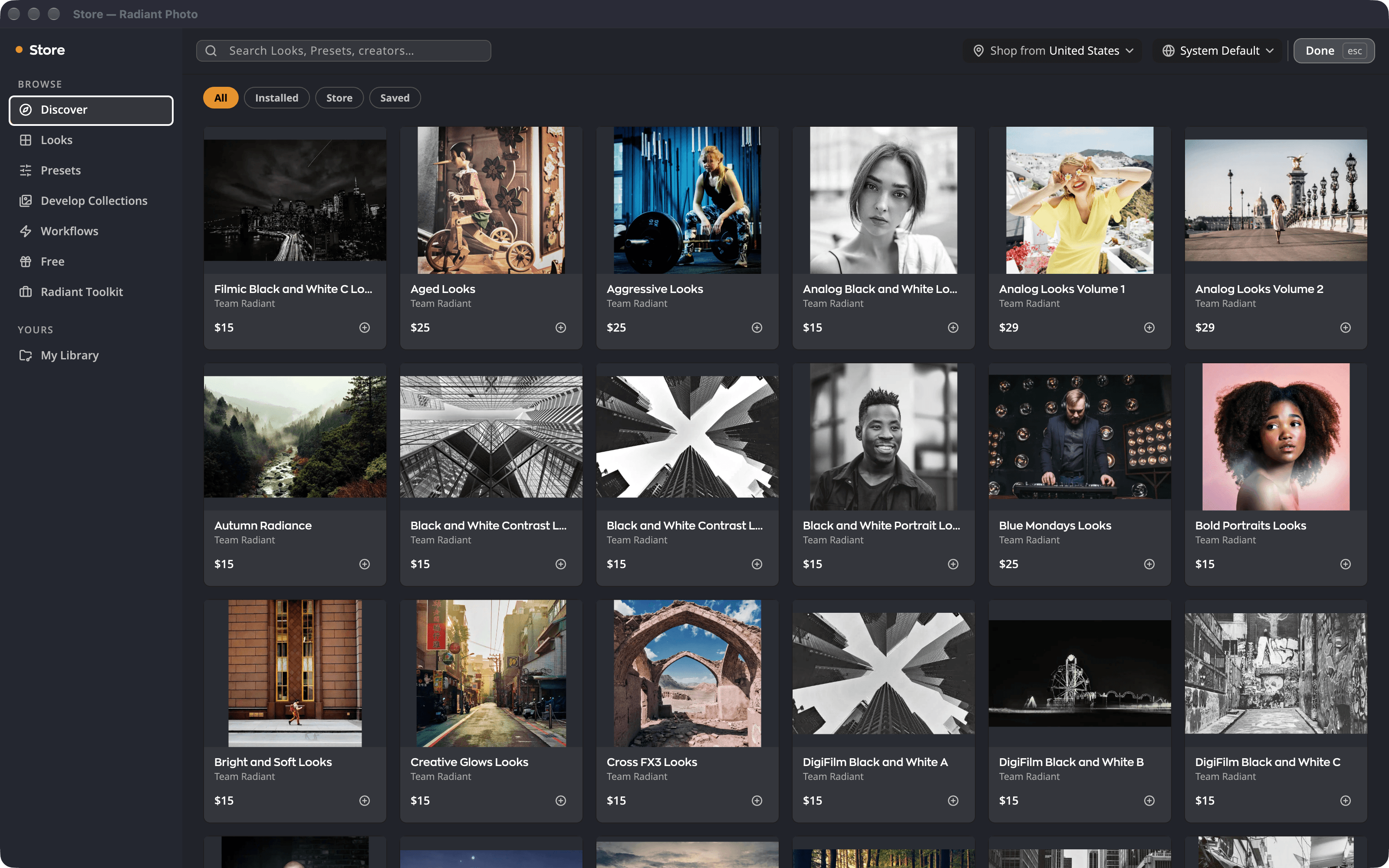
| # | Part | What it does |
|---|---|---|
| 1 | Discover | New this month, and picked for you. |
| 2 | Browse sections | Looks, Recipes, Develop Collections, Workflows and Free. |
| 3 | Radiant Toolkit | The monthly Store credit for license owners. See Radiant Toolkit. |
| 4 | My Library | Everything you own or rent, installed or not. |
| 5 | Search and Done | Search Looks, recipes and creators. Done (or Esc) closes the Store. |
Inside a section, the filter chips narrow the list to All, Installed, Store or Saved.
The editor's own "get more" buttons open the matching section:
- Get More Looks in the Look Browser.
- Get more recipes… on the Recipes tab.
- Get more Develop Collections… in the Develop Collections panel.
Buy or get an item
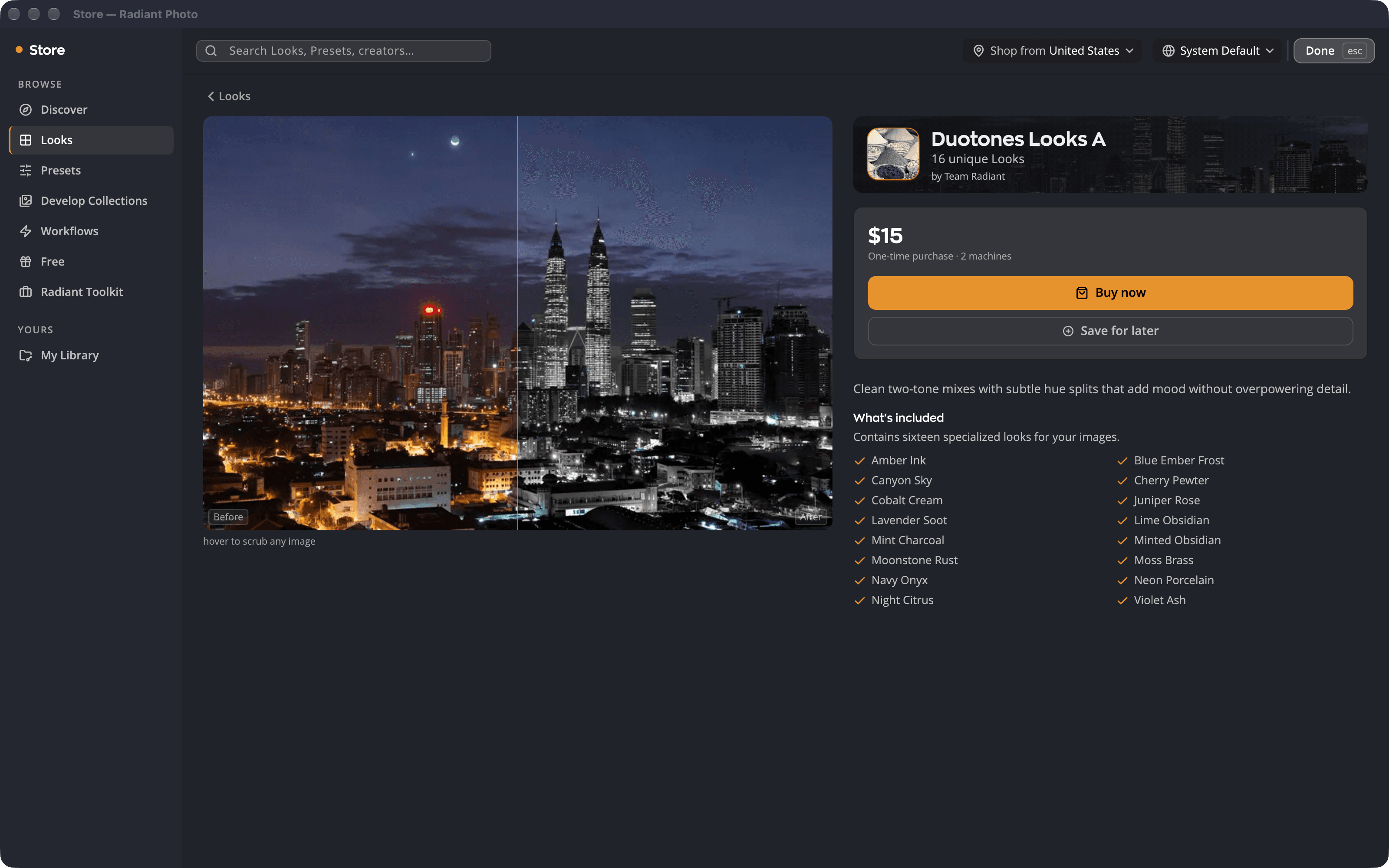
- Click an item to open its page. Hover over the sample photo to compare it before and after. Click a thumbnail to show another sample photo.
- Read What's included and the price line, for example One-time purchase · 2 machines or Free · yours to keep.
- Click Buy now for a paid item or Get for a free one. Save for later keeps it under Saved.
Checkout opens with your license email already filled in, so there's no new account. On macOS it opens inside Radiant Photo. On Windows it continues in your web browser.
After you pay, Radiant Photo notices the payment by itself. It says It’s yours and installs the item. If nothing happens, click I've completed my purchase. Radiant Photo then asks the Store about your payment. It says It’s yours only once the payment has arrived. Until then, you see one of these notes:
- We haven't received your payment yet. We're still checking, and your purchase will appear here as soon as it arrives. Leave checkout open while Radiant Photo checks. If the payment still doesn't arrive, the note changes to the next one.
- We haven't found a purchase for this checkout yet. If you've paid, try Restore purchases, or contact support. If you've paid, click Restore purchases… (see Restore your purchases) or Contact support. When the restore finds what you bought, Radiant Photo installs it.
A Workflow is an in-app purchase. Buy it in the Store, and Radiant Photo installs it for you. Radiant Photo does the same after you restore your purchases, or on another computer where you've activated it. The Workflow's page then shows Unlocked and Pick it from the Workflow switcher. If a Workflow's purchase is refunded, Radiant Photo removes it and its Looks the next time it opens.
My Library
My Library lists what you own and rent, with counts for Owned, Rented, Installed, Not installed and Favorites.
- Install or Uninstall one item, or click Install all (5) to install everything you own at once.
- Update appears when a newer version is out.
- Items rented with an All-Access Subscription say Included with All Access · rented.
- A Workflow you own shows Unlocked where other items have Install or Uninstall. Radiant Photo installs it for you, and Install all (5) leaves Workflows out. The line under its name says Owned · not installed until Radiant Photo has installed it, then, for example, Installed · v1.0.
- Looks you bought for Radiant Photo 2 are grouped under From Radiant Photo 2.
Your purchases install on every computer you activate with your license.
Something you bought on our website shows in My Library when you open the Store, because opening the Store checks your license for new purchases. The check needs an internet connection and runs at most once every five minutes. If a purchase is still missing, use Restore Purchases.
Looks are shared with Radiant Raw. A Looks pack you bought in Radiant Raw is yours here too. It reads Installed once it's on this computer, or Owned until then. A Looks pack you buy here works in Radiant Raw. Both apps need to be activated on this computer. If a purchase is refunded, its Looks stop working in both apps.
Restore your purchases
Use this on a new computer, or to bring back what you bought for Radiant Photo 2.
- Choose Store > Restore Purchases.
- Enter your Purchase email and click Email me a code.
- Enter the 6-digit code from the email and click Restore.
- Open My Library and click Install all (5).
If you bought with a different email address, run Restore Purchases again with that address.
When an All-Access Subscription ends
Looks you rented through All Access stop working when the subscription ends. Radiant Photo then offers Buy your Looks back at a discount, so you can own the collections you had installed.
If the Store can't connect
The Store says The store is unavailable when it can't reach the server. Anything you already own stays in My Library and keeps working.