
Soft proofing and gamut warning
Soft proofing shows on screen how your photo will look in a narrower color space. That could be a printer and paper, or the sRGB of the web. A gamut warning paints over the colors that won't make it. Turn proofing on with View > Soft Proofing; choose what to proof against in Settings > Color.
| What you see | What it means |
|---|---|
| Gray over some pixels | The proof gamut warning: these colors can't be reproduced by the proof profile. |
| Proof | The histogram and scopes are measuring the proofed photo. |
| Canvas status | Your working space followed by 8-bit canvas while proofing, beside a printer icon, while proofing is running. |
Soft proof a photo
- Choose the destination in Settings > Color, under Soft proofing.
- Press ⇧S, or choose View > Soft Proofing.
- Edit as usual. The canvas, the histogram, the scopes and the Color Sampler all show the proofed result.
- Press ⇧S again to go back to the normal view.
Soft proofing only changes what you see. It doesn't change your edit or the file you save. The color space of a saved file is set in the Save dialog. See The Save dialog.
While you proof, the canvas shows an 8-bit preview, so High fidelity pauses until you turn proofing off. The gamut warning also hides while you crop.
Soft proofing settings
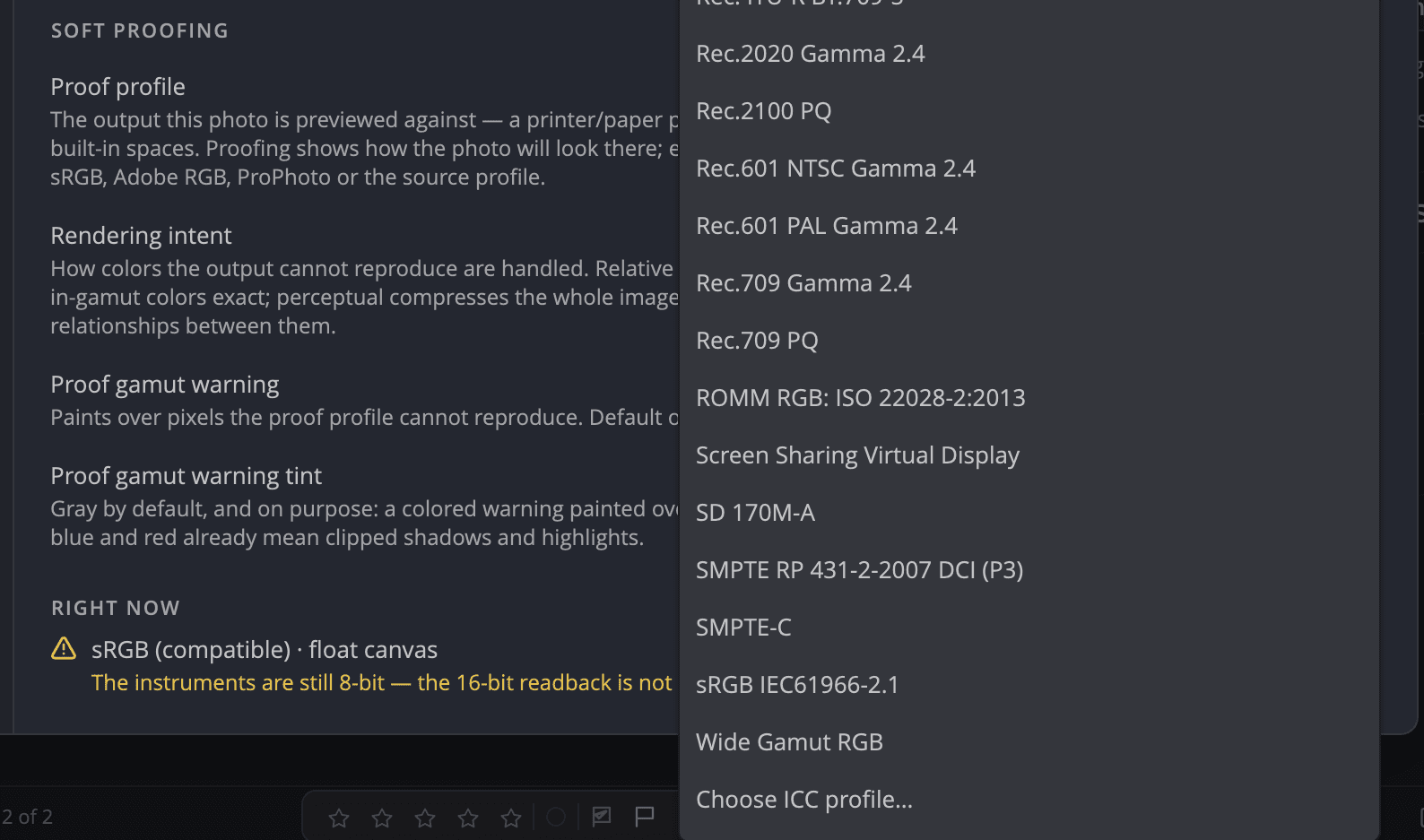
| Setting | Choices (default) | What it does |
|---|---|---|
| Proof profile | sRGB IEC61966-2.1 (default), Adobe RGB (1998), Display P3, ProPhoto RGB, the profiles installed on your computer, or Choose ICC profile… | The output the photo is previewed against, such as a printer and paper profile. |
| Rendering intent | Perceptual, Relative Colorimetric (default), Saturation, Absolute Colorimetric | How colors outside the destination are handled. Relative keeps in-gamut colors exact; Perceptual compresses the whole photo to keep color relationships. |
| Proof gamut warning | On (default) or off | Paints over pixels the proof profile can't reproduce. |
| Proof gamut warning tint | Gray (default), White, Black, Magenta, Cyan | The warning's color. Gray stays readable over any color problem. |
A profile Radiant Photo can't use is refused with a reason, such as a damaged file or a profile that isn't RGB. If a chosen profile is later removed, proofing falls back to sRGB and says so.
Note
On Windows, proof to one of the four built-in spaces. Proofing to an ICC profile isn't available on Windows yet.
Gamut warning without proofing
View > Overlays > Gamut Warning (⇧⌘Y, Ctrl+Shift+Y on Windows) answers a different question. It tints the colors in your edit that the canvas, or the export color space you chose, can't show. Use it when you work in a wide color space such as Display P3 or ProPhoto RGB.
- It's off by default, because it takes extra processing each time the photo updates.
- It stays on as you move between photos until you turn it off.
- It's unavailable while you soft proof, because the proof brings its own warning.
The histogram's Show out-of-gamut warning switch and its Out of gamut figure count the same pixels. See Histogram and scopes.
Tip
Proofing for print? Pick the printer and paper profile, then try both Perceptual and Relative Colorimetric. Keep the one where the gray warning covers the least of what matters.