
Recipes and Develop Collections
A recipe in Develop Collections is a complete set of adjustments, tuned for one kind of scene. These recipes are grouped into Develop Collections, and the Develop Collections section of the left panel shows the ones that suit the photo's scene.
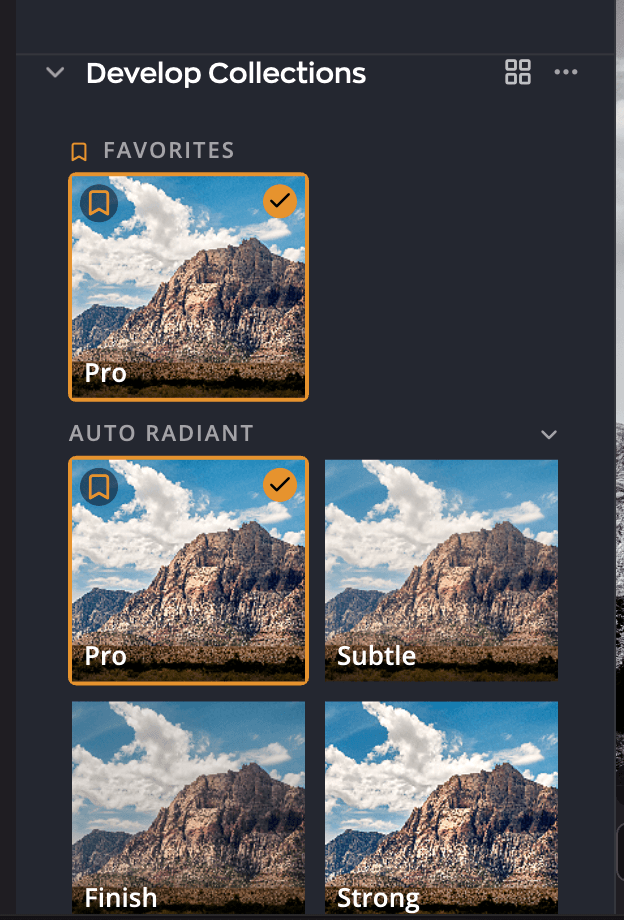
| # | Control | What it does |
|---|---|---|
| 1 | View as list / View as grid | Switches between thumbnails and a list. |
| 2 | Develop Collections options (…) | Save recipes; import and export collections. |
| 3 | FAVORITES | The recipes you bookmarked for this scene. |
| 4 | A collection | Click its name to open it. |
| 5 | A recipe | Point at it to preview; click it to apply. The bookmark adds it to Favorites. |
| 6 | Other scenes | Your own collections saved on other scenes of this Workflow. |
| 7 | Get more Develop Collections… | Opens the Develop Collections section of the Store. |
How Develop Collections work
When you open a photo, the Workflow detects its scene and applies the recipe it recommends for that scene. The Develop Collections section then lists every collection for that scene. Recipes in different scenes can share a name, such as Pro or Subtle, but each one is tuned for its own scene.
A recipe is a starting point, not a final answer. You can use it as it is, adjust it, try another one in the same collection, or open another collection.
The recipes on the Recipes tab work differently: they don't follow the scene, and each one applies the same way to every photo. See Recipes.
Try and apply a recipe
- Click a collection's name to open it.
- Point at a recipe. The photo previews it while the pointer stays there.
- Click the recipe to apply it. It's one step, so ⌘Z (Ctrl+Z on Windows) undoes it.
Your crop and Spot Removal work stay as they are when you apply a recipe.
To keep a recipe at hand, click its bookmark (Add to Favorites). It appears under FAVORITES at the top of the section whenever its scene comes up.
Tip
Use the Develop slider in the top toolbar to make the applied recipe stronger or gentler.
Save your own recipe
Radiant Photo's adjustments respond to each photo, so a recipe you save can adapt to new photos rather than repeat fixed values. Lean on the tools that set a target:
- The Smart Editing sliders adapt to each photo. The same recipe can darken an overexposed photo and brighten an underexposed one.
- Exposure in the Tone panel can aim for Low, Medium or High, and Face Aware Exposure can follow the faces in the photo.
- Noise Reduction and Tint Correction only act when the photo has the problem.
To save:
- Edit a photo until you like it.
- Click Develop Collections options (…) and choose Save recipe….
- Enter a name in Recipe name.
- Choose a Collection. Your first saves go to My Develop Settings. Choose New collection… to make another and type its New collection name.
- Add a Description (optional) to help you choose it later.
- Click Save.
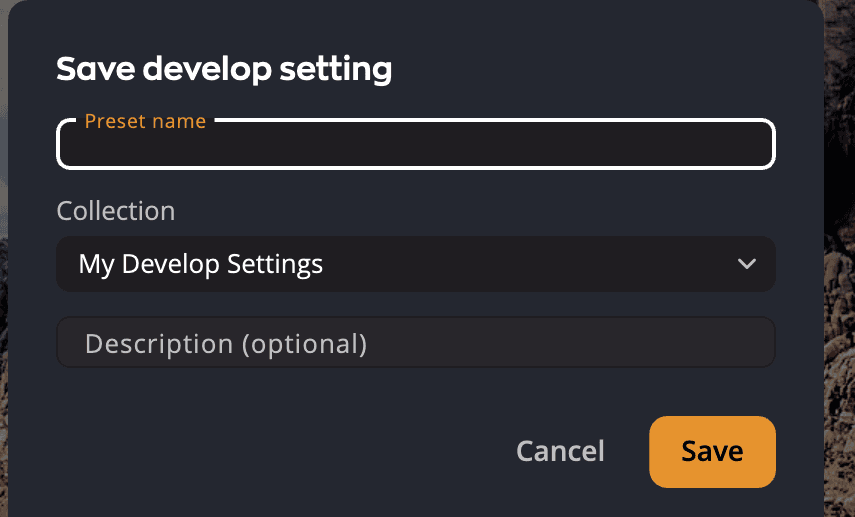
The new recipe is saved with the photo's scene, so it appears in the Develop Collections section whenever that scene comes up. The Collection list shows your collections in the active Workflow.
Change a recipe you saved
- Apply your recipe.
- Make your changes.
- Choose Save recipe… again, with the same name and collection.
- Click Replace when Radiant Photo asks Replace recipe?
Rename, move or delete your own recipes
Point at one of your own recipes and click its Recipe options button (…):
| Choice | What it does |
|---|---|
| Rename… | Gives the recipe a new name. |
| Move to collection… | Moves it to another of your collections. |
| Export… | Saves this one recipe as a .radiant file. |
| Delete… | Removes it. Radiant Photo asks first, because this can't be undone. |
The recipes that come with Radiant Photo or from the Store can't be renamed, moved or deleted. To build on one, apply it, adjust it, and save the result as your own.
Back up and share your collections
Your own Develop Collections can travel as .radiant files.
- Export develop collections… saves all your own collections in one file. The Develop Collections that come with Radiant Photo or from the Store can't be exported.
- Import develop collection… adds collections from a file. If a file would replace a built-in collection or your saved recipes, Radiant Photo refuses it and says why.
Paid collections are skipped on import and stay in your Radiant library.
Important
Please share only recipes you created yourself.
Get more Develop Collections
Click Get more Develop Collections… at the bottom of the section. The Store opens at its Develop Collections section, where you can browse, buy and install more.