
The role of a Workflow
A Workflow is the set of scenes Radiant Photo recognizes and the recipes it recommends for each one. When you open a photo, the active Workflow scores it, picks the closest scene and applies that scene's recipe. You'll find it in the Workflow section of the left panel, under the Navigator.
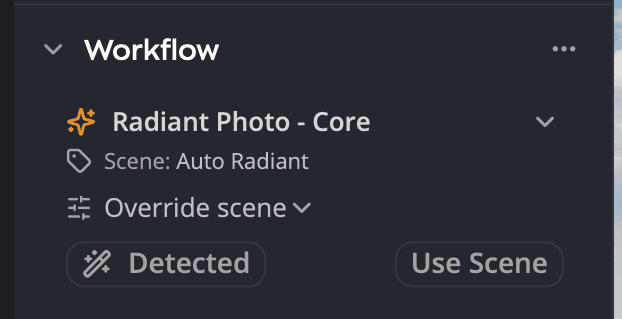
| # | Control | What it does |
|---|---|---|
| 1 | Workflow switcher | Shows the active Workflow. Click it to switch. |
| 2 | Scene: | The scene the Workflow matched for this photo. |
| 3 | Override scene | Choose a different scene for this photo. |
| 4 | Detect | Returns the photo to the scene the AI picked. Reads Detected when it already is. |
| 5 | Use Scene | Restores the AI-recommended settings for this photo. Grayed out when there are none to restore. |
| 6 | Workflow options (…) | Set or reset the default recipe for a scene, or learn more. |
The Workflows
Radiant Photo - Core is included with Radiant Photo and is active until you choose another. It is built for everyday photography and recognizes a broad range of subjects, from landscapes and food to people, groups and black-and-white photos.
Four more Workflows are sold in the Store: Radiant Portraiture, Radiant Landscapes, Radiant Birds and Radiant Pets. Each adds its own scenes and Develop Collections for that kind of photography. When you buy one, Radiant Photo installs it for you. See The Store.
Switch Workflows
Only one Workflow is active at a time. You can switch without restarting Radiant Photo.
- Click the Workflow switcher in the Workflow section.
- Choose a Workflow from the list.
If no photo is open, the new Workflow is active at once. If photos are open, the Change Workflow dialog asks what to do with them:
| Choice | What happens |
|---|---|
| Reanalyze photos | Switches the Workflow and analyzes every open photo again, applying the new Workflow's recipes. |
| Keep current settings | Closes the dialog. The Workflow stays as it was and your photos keep their edits. |
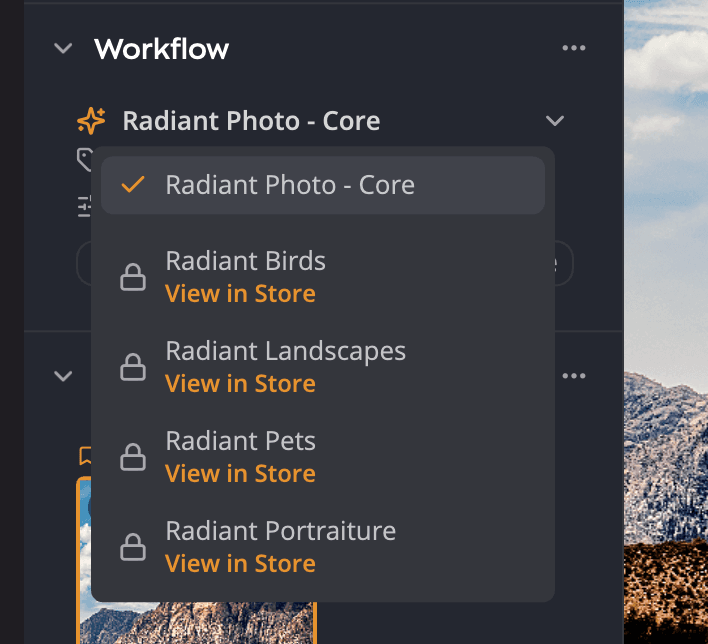
Below a divider, the list also shows the Workflows you don't have yet:
- A lock and View in Store means you don't own that Workflow. Click it to open its page in the Store.
- A clock and Not available yet means you own it, but Radiant Photo hasn't finished setting it up on this computer. It does that by itself, and the Workflow is ready when it's done. If it can't yet, Radiant Photo tries again the next time you open it or restore your purchases.
Change the scene for a photo
Radiant Photo picks one scene per photo, and you can always disagree with it.
- Click Override scene.
- Choose a scene from the list. The current one is highlighted.
Radiant Photo applies that scene's recipe in one step, and remembers the scene with the photo.
To undo your choice, you have two buttons:
- Detect puts back the scene the AI picked, with its recipe.
- Use Scene restores the exact settings Radiant Photo applied when the photo first opened.
To run the analysis from scratch, choose Edit > Re-detect Scene.
Note
Turn automatic scene detection on or off in Settings > AI with Choose develop settings automatically from the scene.
Choose your own default for a scene
Each scene starts with a recommended recipe. If you prefer a different one, make it the default, and Radiant Photo uses it for every new photo of that scene.
- Apply the recipe you want from the Develop Collections tab in the left panel. It must be one of this scene's recipes. If it's your own, save it first.
- Click Workflow options (…) in the Workflow header.
- Choose Choose default develop settings.
A message confirms Set “name” as the default for this scene. To go back to the Workflow's own choice, choose Reset default develop settings from the same menu.
Important
Changing a default doesn't change photos you've already opened. To apply it to the current photo, click Reset to workflow defaults in the top toolbar.
Learn more in the same menu opens the Workflow page on the Radiant Imaging Labs website.