
Browsing with Radiant Flow
Radiant Flow is a free companion app for browsing your folders. Use it to rate, filter and pick your best photos, then send them to Radiant Photo to edit. Radiant Flow has its own manual; this topic covers how the two apps work together.
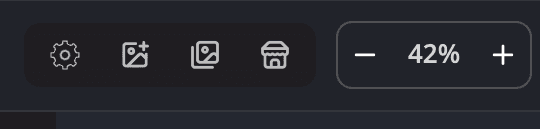
| # | Control | What it does |
|---|---|---|
| 1 | Quick settings | The gear. Quick toggles, and All Settings…. |
| 2 | Open photos… | Opens files without Radiant Flow. |
| 3 | Radiant Flow button | Opens Radiant Flow. Its tooltip reads Radiant Flow — browse and cull photos, or Radiant Flow — bring to front when Flow is already open. |
Install Radiant Flow
Radiant Flow is a separate, free application. Radiant Photo's installer adds it, and Radiant Photo finds it. If it isn't installed, Radiant Photo says Radiant Flow isn’t installed. It’s a separate, free application — install it and Radiant Photo will find it.
Open Radiant Flow
- Click the Radiant Flow button at the left of the toolbar.
- On the Home screen, click Browse Photos.
- Choose File > Browse Photos… or press ⇧⌘O (Ctrl+Shift+O on Windows).
- On macOS, choose File > Import from Apple Photos… to open Radiant Flow at your Photos library.
Radiant Flow opens in its own window and keeps running if you quit Radiant Photo.
Send photos to Radiant Photo
Select the photos you want in Radiant Flow, then click Open 12 in Radiant Photo (the number is how many you selected). The photos open in Radiant Photo's filmstrip, exactly as if you had opened them from the Finder or File Explorer.
For a photo that Radiant Flow sent from a Lightroom Classic catalog, choose File > Show in Lightroom Classic. Lightroom Classic selects the photo and comes to the front. If Lightroom Classic doesn't have that catalog open, Radiant Photo offers to open it. The menu row is there only for such a photo.
Such a photo opens with the rating, flag and color label it has in the Lightroom Classic catalog, where they differ from its file's. Opening it doesn't change the file. A mark you change goes to the catalog. When Radiant Photo may change the file, it writes only that mark into it. If another app changes a mark in the file while the photo is open, Radiant Photo shows the new one.
Process a Job from Radiant Flow
A Job is a saved list of photos in Radiant Flow. When you send one to Radiant Photo, Flow offers Open now, which opens the photos here, or Process with…, which hands Radiant Photo one job: a Look, a Recipe or the Workflow for every photo, saved in a folder you choose. Radiant Photo lists the job under Jobs on the Share page and starts it as soon as it arrives, after any job already running. With Start jobs from Radiant Flow on arrival off, the job waits there until you click Start. The Share page is there while a photo is open. See Jobs from Radiant Flow, and Send to Radiant Photo in the Radiant Flow manual.
While it runs, Radiant Photo keeps Flow's list of its Looks, Recipes and Workflow up to date, so Flow offers only what Radiant Photo can apply.
What the two apps share
- Flags. Settings > General > Flags (Color or Monochrome) sets how pick, reject and unflag marks are drawn. The setting is shared by every Radiant app.
- PRISM Photo Score. Radiant Flow scores your photos, and Radiant Photo can show the score (View > PRISM Photo Score). The PRISM Photo Score switch in Settings > General turns scoring on or off in every folder you visit in Radiant Flow.
- PRISM suggestions. With Radiant Flow installed, the Look Browser can show Looks suggested by PRISM.
Without Radiant Flow, Radiant Photo works fully, but there is no PRISM Photo Score and no PRISM suggestions. Those places say PRISM needs Radiant Flow on this computer.