
Keeping Radiant Photo up to date
Updates bring new features and fixes. Radiant Photo checks for them on its own, and you decide when to install.
How updates work
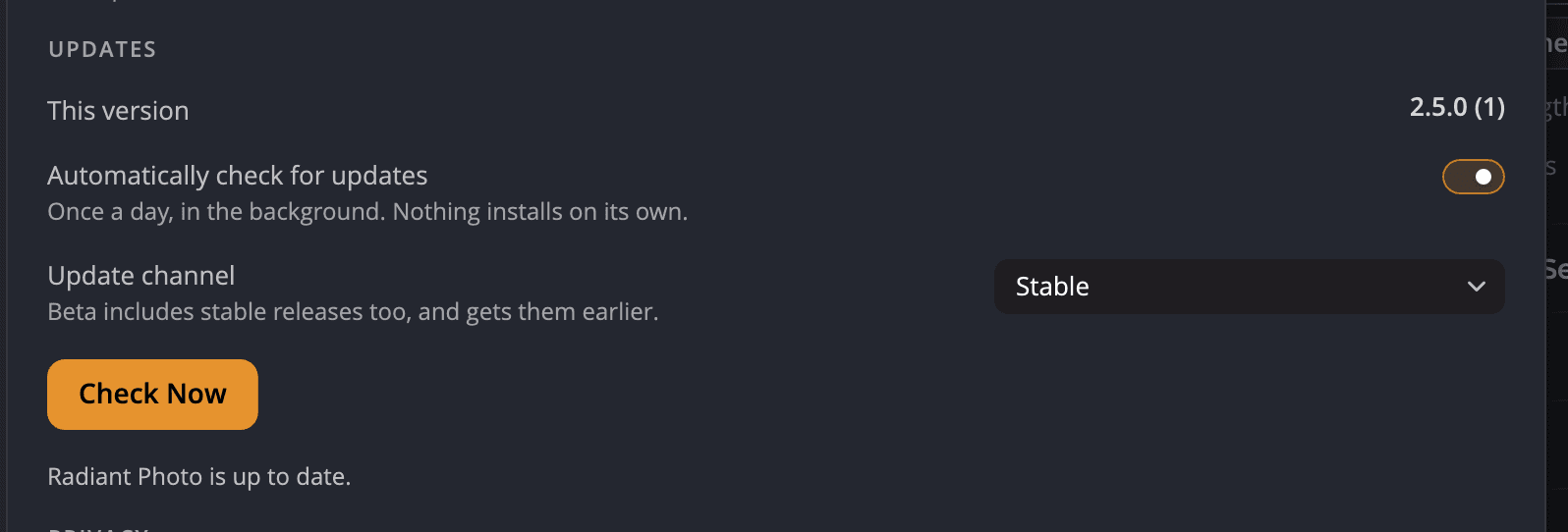
With Automatically check for updates on, Radiant Photo checks once a day in the background. Nothing installs on its own. When a new version is out, Updates in Settings > General says Version 2.5.1 is available. (with the new version number). After you download it, the line reads Version 2.5.1 is ready to install.
Check for an update now
- Choose Radiant Photo > Settings… (on Windows, Edit > Settings…).
- Click General and find Updates.
- Click Check Now.
- If an update is available, click Download Update, then Install…
Important
Save your work before you click Install…
Choose an update channel
| Channel | What you get |
|---|---|
| Stable | Tested releases. Best for most people. |
| Beta | Stable releases too, plus new versions earlier. |
If an update doesn't download
| You see | What to do |
|---|---|
| Couldn't reach the update server — check your connection. | Check your internet connection, then click Check Now again. |
| The update server had a problem. Try again later. | Wait a little and try again. |
| Couldn't download the update. | Try again. If it keeps failing, download the installer from the Downloads page in Support on our website. |
Note
Coming from Radiant Photo 2? You no longer need Radiant Manager. Activation, purchases and updates are now in Radiant Photo itself.